

 Sign in

 Български
 Čeština
 Dansk
 Deutsch
 Eesti
 Ελληνικά
 Español
 Français
 Hrvatski
 Italiano
 Latviešu
 Lietuvių
 Magyar
 Nederlands
 Norsk
 Polski
 Português
 Română
 Slovenčina
 Slovenščina
 Српски (Ћирилица)
 Suomi
 Svenska
 Türkçe
 Русский
 Українська
Revision and update of the safety data sheet
In this chapter, you will learn how to check whether the information in a safety data sheet is up to date and make any necessary changes. We will also show you the features that can help you with this.
What the software checks
Safety data sheet format – the software checks whether the safety data sheet format complies with the current requirements of the countries for which it is intended.
Substance validity – based on the information in the database, the software checks whether the versions of both default and user-created substances in the safety data sheet are still valid. It also takes changes to harmonised classification into account. The traffic light indicator highlights outdated substance versions and those that are due to expire soon.
Control parameters for section 8 – the software compares the control parameters of substances with the data in the SBLCore database for the countries you have selected in section 8.
Revision status
On the Safety data sheets tab, you can see the SDS status in the Revision column. The colour of the traffic light indicator shows whether the information is up to date.
 Green – contains up-to-date information.
 Orange – contains a substance that is due to expire and/or uses a format that will become invalid on a specific date. Update it before it expires.
 Red – contains outdated data (e.g. substances or control parameters) and/or uses an outdated or invalid format.
 Grey - the status cannot be evaluated because you do not have an active subscription for this country.
 Blue - contains a substance whose validity start date is in the future.
A red or orange status means that the SDS needs to be revised.
How to perform a revision
-
On the Safety data sheets tab, double-click the safety data sheet you want to revise. Alternatively, select it and click Edit.
-
The safety data sheet editor will open. Below the section navigator, you will see notifications about information that needs to be checked or updated.

-
In the notification about outdated data, click Revise. You can also find the same button on the top toolbar.

-
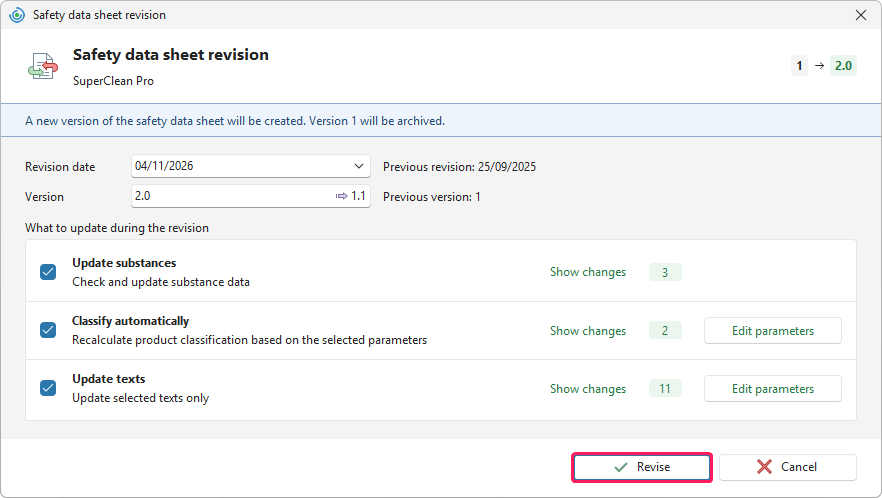
A window will open where you can select what you want to update during the revision.
-
In the first field, the software automatically sets the Revision date. You can change it if necessary.
-
The new version number is automatically set in the Version field.
For example, when revising version 1.0, the software automatically enters 2.0. You can change it if necessary.
-
Tick the options you want to use during the revision:
Update substances
Classify automatically
Update texts
You can find more information about each option below in the Revision options chapter.
-
For the Classify automatically and Update texts options, you can adjust the settings. Simply click Edit parameters.
-
If the software suggests changes, the Show changes button will appear. Click it to open an overview of the proposed changes. If you only want to see the changed data, tick Show only changes in the top right corner.
-
During each revision, the software automatically checks whether the safety data sheet format needs to be updated. If so, it converts the safety data sheet to the latest format required in the destination country.
-
Click Revise to start the revision.
-
The software creates a new version of the safety data sheet and marks it with the Uncompleted status. The previous version is archived.
Note: If you did not select the Update substances option, you can update them manually. You can find the procedure below in the Manual substance update chapter.
-
Once the revision is complete, a green information bar will appear with the text Revised and an overview of the changes. If any data remains outdated, the application will continue to highlight it with text and colour indicators.

-
We recommend always checking the changes made by the software during the revision. You can use the Compare function for this. Both versions of the safety data sheet will be displayed side by side. The previous version will appear on the left and the new revised version on the right.
-
If you have enabled the Update texts function, the software will automatically add the numbers of the sections changed during the revision to section 16. If you have also modified any sections manually, we recommend adding their numbers to the list.
Warning! If the composition or classification of the product has changed, check whether the UFI needs to be added or changed and whether the PCN notification needs to be updated.
Revision options
Update substances
The Update substances function checks whether the SBLCore database contains newer information about the substances in the safety data sheet and prepares their update. You can review the proposed changes using the Show changes button.
The software can update, for example, the following information:
substance classification, including harmonised classification,
specific concentration limits (SCLs) and acute toxicity estimates (ATEs),
substance names,
physical and chemical properties,
toxicity and ecotoxicity data,
control parameters, such as occupational exposure limits.
Warning! If you imported the SDS using the Import PDF function, the software also imported the control parameters from the original PDF. If you use the Update substances function, the software will replace these parameters with the default values.
When updating substances, the software takes into account the source and version of each substance. Depending on the available information, it proceeds as follows:
Newer version of a substance from the same source: If the software finds a newer version of a substance from the same source, it updates the substance information accordingly. The source may be, for example, the supplier whose documentation you used to create the substance.
Changes to the default substance data: If the information about a default substance changes in the SBLCore database, the software also applies these changes to substances you have created or modified based on it. This may include, for example, a change to the existing harmonised classification.
New harmonised classification: The software also checks whether a new harmonised classification has become available for the substance. It searches for the corresponding record using substance identifiers, such as the CAS number, EC number or index number.
Note: If the safety data sheet contains substances that have no classification entered and are not included in the software's default database, the Add missing substance classifications from ECHA CHEM option will appear.
The software searches for the substances in the ECHA CHEM database and attempts to add the most commonly reported classification. If the software cannot find a substance, you must enter its classification manually.
Classify automatically
The Classify automatically function recalculates the product classification according to the selected parameters.
If you want to view or change the parameters, click Edit parameters. You can review the proposed changes using the Show changes button.
During the revision, you can set the same classification parameters as when creating a new safety data sheet. For more details, see guide How to Prepare a Safety Data Sheet for a Mixture.
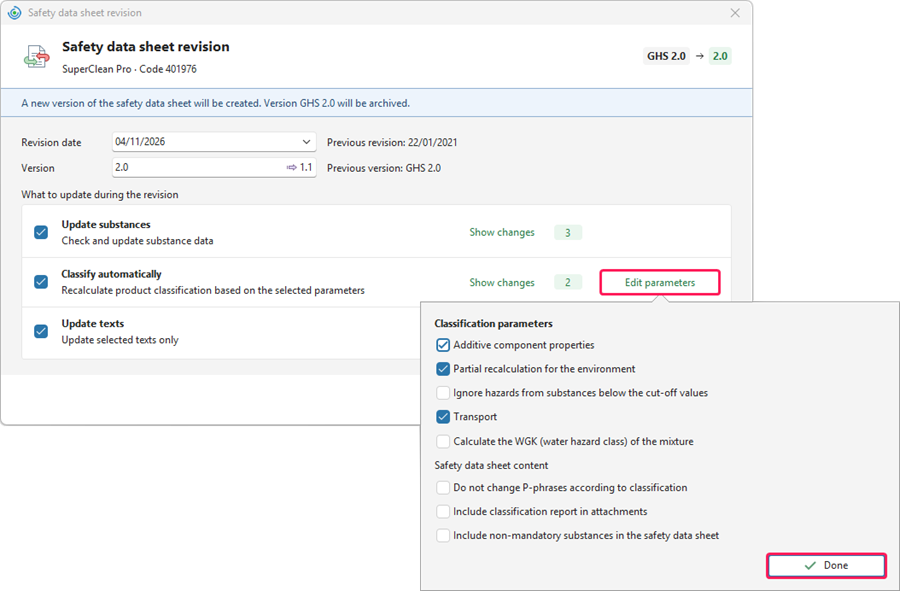
Warning! Automatic classification may overwrite the existing product classification data. If you want to keep this data, untick the Classify automatically option. If you want to recalculate the classification but keep some information unchanged, adjust the classification parameters. For example, you can set the software to retain the original P-statements.
Update texts
The Update texts function offers two ways to update the safety data sheet texts.
Click Edit parameters and select the option you want to use.
You can review the proposed changes using the Show changes button. If you do not want to apply certain changes, untick them.
A. Update selected texts only
Use this option if you want to retain most of the original wording of the safety data sheet. The software will offer to update the following information:
the emergency telephone number in section 1;
other hazards in section 2;
information on endocrine disrupting properties in sections 11 and 12;
the results of the PBT and vPvB assessment in section 12;
waste disposal methods and waste management regulations in section 13;
selected transport information in section 14;
legislation in section 15;
data sources and information about the revision performed in section 16.
This option does not change any other texts.
B. Regenerate texts throughout the document
This option includes updating selected texts and also regenerates other texts that the software can create automatically.
Based on the information in the safety data sheet and the product classification, it also regenerates, for example:
first aid instructions (section 4),
firefighting measures (section 5),
storage conditions (section 7) or
information on personal protective equipment (section 8).
The software does not change measured physical and chemical values. However, it may update the accompanying texts in section 9.
Warning! When generating new texts, SBLCore may also overwrite your manual changes. Therefore, before starting the revision, review the proposed changes and untick those you do not want to apply.
Updating substances in the Source Data
You can update substances directly in the Supporting data section without having to use the Revise function.
If you have added new information about substances to the database, you can transfer it to the safety data sheet this way.
Warning! This update does not create a new version of the safety data sheet. Its date will not change, and the previous version will not be archived.
Manual substance update
The software shows you the proposed changes for each substance. You can review them in detail before confirming the changes.
-
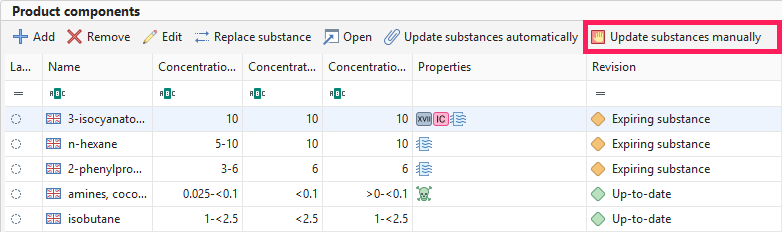
In the Supporting data section, go to Product components. Then click Update substances manually.
-
A window will open with an overview of the substances.
-
Substances that need to be updated are automatically selected, and the Status column displays “Updates” or “Substance revision”.
Updates - The software updates the substance in the safety data sheet based on the changes you have made to your substance. For example, if you have added information about its toxicity, the software will also add it to the safety data sheet.
Substance revision - The software updates the substance in the safety data sheet based on a newer version of the default substance.
Both updates and revisions may also change the Control parameters.
-
You can optionally compare the information to be updated.
Click the row containing the substance to select it.
Click the Compare button on the top toolbar.
A comparison of the original substance and the updated version will appear. The information to be updated is highlighted in blue.
-
If you want to view the updated version of a substance, click the row containing the substance to select it, then click the Open updated substance button on the top toolbar.
The substance editor will open, where you can make changes. Click Close to return to the update overview.
-
If you want to update the original substance to a different one from the substance assigned by the software, click the Choose another substance button on the top toolbar and search for the required substance.
-
If you do not want to update a substance, untick the checkbox in the Update substances column.
-
To update the selected substances, click OK.
-
If necessary, classify the product and check the information in the safety data sheet.
Automatic substance update
If you do not want to compare the substance information and review it manually, you can update the substances automatically.
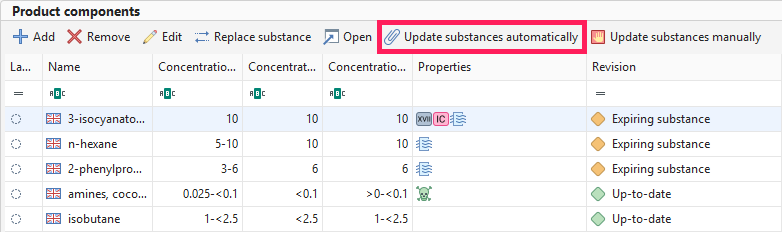
The function works in the same way as the Update substances option in the safety data sheet revision window.
The software automatically updates the substance information. For outdated substances and those that are due to expire, it searches for an up-to-date version (newer classification, current toxicity values, etc.) and also updates the control parameters.
Replace substance
If you want to replace a substance with a different one from the substance assigned by the software, you can replace it manually.
In the Supporting data section, go to Product components. Then click Replace substance and select a substance from the database.
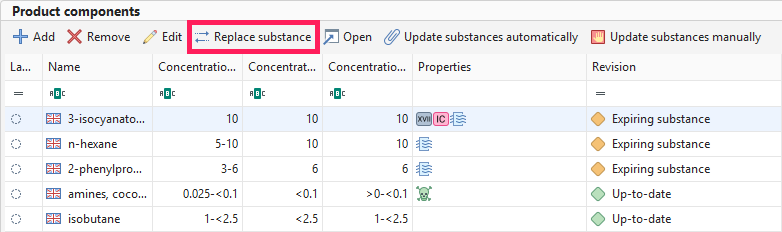
The Choose another substance button in the manual substance update window has the same function.


