

 Sign in

 Български
 Čeština
 Dansk
 Deutsch
 Eesti
 Ελληνικά
 Español
 Français
 Hrvatski
 Italiano
 Latviešu
 Lietuvių
 Magyar
 Nederlands
 Norsk
 Polski
 Português
 Română
 Slovenčina
 Slovenščina
 Српски (Ћирилица)
 Suomi
 Svenska
 Türkçe
 Русский
 Українська
AI import
With AI Import, you can quickly transfer a safety data sheet into SBLCore. Artificial intelligence reads the document content and automatically enters the data into the correct sections of the safety data sheet editor. Always check the result and correct any errors.
Before importing
To use AI Import, you need an internet connection and sufficient credits. You can find out more about credits in chapter AI Credits.
For the best possible result, prepare the document according to the following rules:
No password – the document must be accessible without a password.
PDF with copyable text – use a PDF in which you can select and copy text. We also process scanned pages, but this takes more time.
One language – the document should contain a safety data sheet in only one language.
One product – the document should contain a safety data sheet for only one product.
You can find more detailed information in chapter Tips for AI Import.
AI Import procedure
-
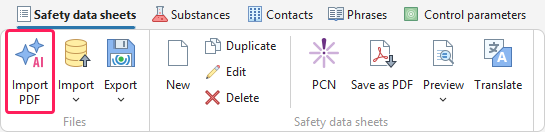
On the Safety data sheets tab, click Import PDF.
-
Select one or more PDF files that you want to import. To select multiple files at once, hold down the Ctrl key and select them.
Warning! Do not upload documents containing sensitive data or confidential formulations. We store uploaded documents and may use them to improve the feature.
-
A notice will appear explaining how we process and use uploaded documents.
Read the notice and click Acknowledged.
Tip! If you do not want the notice to appear again during the day, tick the Don't show again today option in the bottom-left corner.
-
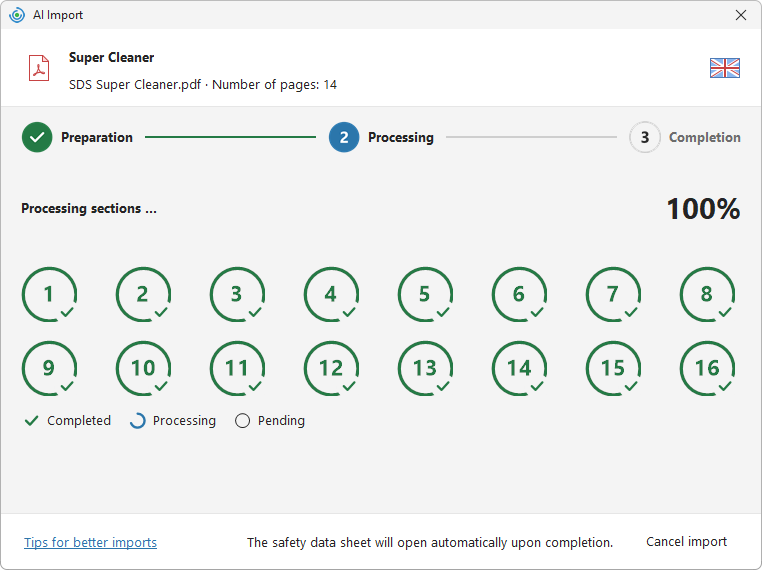
After confirmation, AI will automatically start processing the document. The import takes place in three stages, which you can monitor throughout the process.
If you select multiple PDF files, the software will process them one by one.
-
Once the import is complete, the safety data sheet will automatically open in the editor. You can find the original file in the attachment.
If you have imported multiple files at once, a list of them will appear. Newly imported safety data sheets are highlighted in yellow.
Tip! If you import a safety data sheet in a language that the software does not support, AI will automatically translate it into the application language so that you can continue working with it.
-
At the top of the editor, you will find the information bar Imported using AI. It displays the import date and the number of credits used.

You can find out more about credits in chapter AI Credits.
-
You can close the bar by clicking the cross on the right. To display it again, click the Imported by AI button on the toolbar.

-
Check the imported data and correct any errors.
Warning! AI may not recognise all data correctly. Therefore, before continuing your work, always verify that the imported safety data sheet matches the original document.
Pay particular attention to:
the composition and concentrations of substances,
the classification and labelling,
the values in sections 8, 11 and 12,
the transport information.
During the review, you can use the Compare button. You can find it in the information bar or in the AI section of the toolbar.
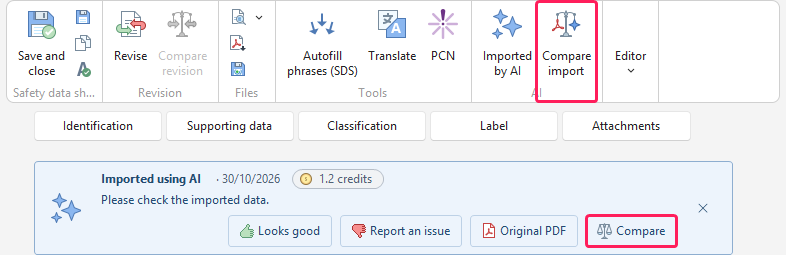
A window will open, showing the original PDF on the left and the safety data sheet created in SBLCore on the right. This allows you to easily compare the imported data with the original document.
-
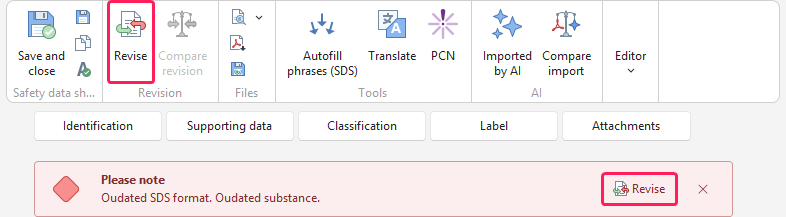
You can edit the imported safety data sheet manually or using the Revise feature.
You can always find the Revise feature on the toolbar.
If the software detects that some parts of the safety data sheet are not up to date, an information bar will also appear in the editor. It shows which parts need to be updated. You will also find the Revise button there.
Warning! The revision may change the content of the safety data sheet. You can choose which changes the software should make – you can update substances, reclassify the product or update the text.
You can find out more in chapter Revision and update of the safety data sheet.
Feedback
After reviewing the results, you can let us know how well the AI Import worked.
If you are satisfied with the result, click Looks good in the information bar. If you have found an error, click Report an issue.



